





The Unveiled Secrets of the Mac's "Fn" Key: A Comprehensive Guide
December 25,2023
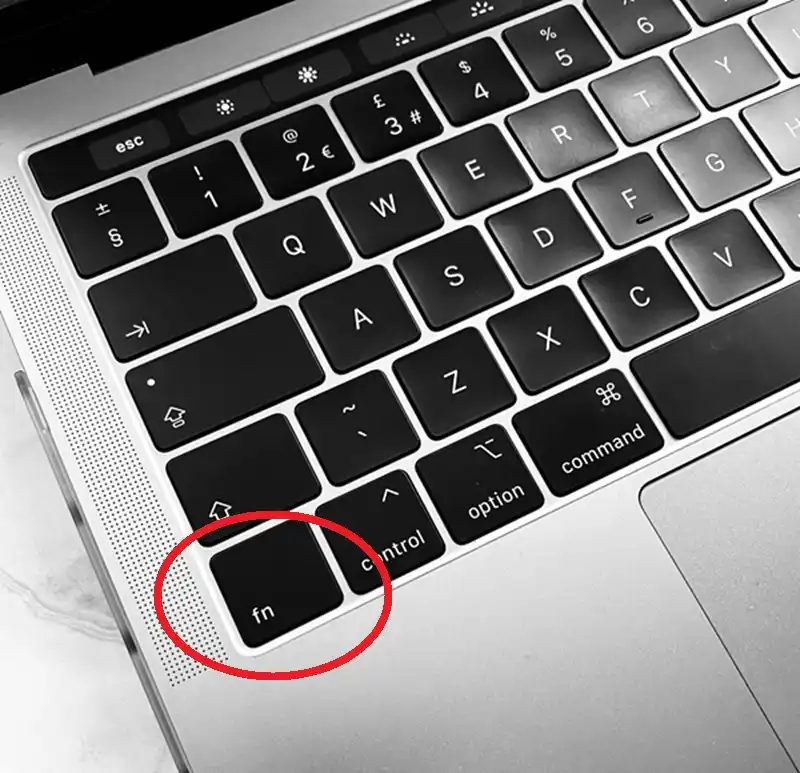
Explore the hidden functionalities of the Mac's 'Fn' key in our comprehensive guide. Learn essential shortcuts and customizations for enhanced productivity and navigation on your MacBook. Dive into the mysteries of this powerful yet overlooked key.
Introduction to the "Fn" Key on Macs
The "Fn" (Function) key on Mac keyboards is a powerful yet often overlooked feature. This key, typically located at the bottom left of the keyboard, plays a crucial role in enhancing the functionality and usability of your Mac or MacBook.
Understanding the Placement and Basics
If you struggle to locate this key on your keyboard, don't worry – it's not present on all models. On some, you can replicate its function by holding the "Control" key. Recognizable by its globe icon, the "Fn" key, especially in the latest macOS versions, offers quick access to a world of shortcuts, including the emoji catalogue.
Essential Shortcuts Using the "Fn" Key
The shortcuts provided by the "Fn" key can vary based on your Mac model and macOS version. Here, we'll explore those compatible with the latest models, like the MacBook Pro M3 running Sonoma 14.2.

Close-up of a MacBook Pro keyboard highlighting the 'fn' key, encircled in red, alongside 'control', 'option', and 'command' keys.
Basic Operations and Navigation
- Fn + Q: Quickly launches or accesses Apple Notes.
- Fn + Delete: Offers forward deletion, character by character.
- Fn + A: Enables selection and navigation of applications in the Dock.
- Fn + Shift + A: Opens Launchpad to view installed apps.
- Fn + C: Accesses the Control Center effortlessly.
- Fn + D: Activates Siri dictation for voice-to-text input.
- Fn + E: Brings up the emoji selector.
- Fn + N: Displays the Notification Center.
Advanced Navigation and Utility Functions
- Fn + M: Opens the Apple menu, helpful when your mouse or touchpad is unresponsive.
- Fn + F: Switches to full-screen mode for an immersive experience.
- Fn + H: Hides the current window, revealing the desktop – a handy tool for privacy.
- Fn + Arrow Keys: Mimics the "Page Up/Down" and "Home/End" keys for document navigation.
Integrating the "Fn" Key with F1 to F12
Beyond these shortcuts, the "Fn" key works in tandem with the top-row F1 to F12 keys, which control various Mac features by default.
Customizing Function Keys
By combining "Fn" with these function keys, you unlock a new layer of customizable shortcuts. For example, "Fn + F7" can act as the F17 key instead of the default rewind function in media playback.
Setting Up Custom Shortcuts
To tailor these shortcuts, head to System Settings in macOS Ventura. Navigate to the "Keyboard" section, and then to "Keyboard shortcuts". Here, you can personalize the actions of the F1 to F12 keys in combination with the "Fn" key, like using "Fn + F11" to display the desktop.
Frequently Asked Questions About the "Fn" Key
The Purpose and Unlocking the "Fn" Key
Many users inquire about the fundamental purpose of the "Fn" key on Macs. It's designed to extend the functionality of other keys and can be 'unlocked' or activated through System Settings.
The World Key Functionality
Another common question is about the globe or world key, which is part of the "Fn" key's functionality in recent Mac models, primarily used for accessing the emoji catalogue and international keyboards.
The Role of the "Fn" Key on Magic Keyboards
For users of the Magic Keyboard, the "Fn" key retains similar functionalities, enhancing the keyboard's versatility and ease of use.
Embracing the "Fn" Key's Power
The "Fn" key on Macs is a gateway to a more efficient and streamlined computing experience. By understanding and utilizing this key, users can significantly enhance their productivity and navigation on their Mac devices.
You may be also interested in them

Essential Guide to Detecting Hidden Cameras in Your Holiday Rental: Tips for a Secure Stay
Discover how to detect hidden cameras in your holiday rental with our comprehensive guide. Learn practical tips, tools, and steps to ensure your priva...July 26,2024

The Asus ROG Ally X is Officially Launched: Discover the New Portable Console
Introducing the Asus ROG Ally X: the latest in portable gaming, featuring enhanced battery life, upgraded performance, and a sleek design.June 02,2024

PS5 Pro Specs and Rumours 2024: AI-Powered PSSR and 8K Support
Explore the latest rumours and specifications surrounding the PS5 Pro for 2024. Discover its AI-powered PSSR technology and potential 8K support, sett...May 28,2024
The Future of Gaming: The Nintendo Switch 2 Announcement
Anticipation builds for the Nintendo Switch 2! Set for an announcement this fiscal year, discover its expected features, release date, and the legacy...May 28,2024

Nintendo Switch 2: Revolutionising Gaming with a New NVIDIA Chip
Discover how the Nintendo Switch 2, powered by a custom NVIDIA chip, is set to transform gaming with enhanced performance and updates for existing gam...February 13,2024

Windows 11's New Screenshot Tool: Advanced Editing and OCR Capabilities Unveiled
Explore the latest Windows 11 update enhancing its screenshot tool. Learn about new editing features, shape additions, text highlighting, and OCR capa...January 18,2024

The Evolution of Gaming: Anticipating the Nintendo Switch 2
Explore the evolution of gaming with the Nintendo Switch 2. Delve into expected features like advanced hardware, 4K gaming, and VR support. Uncover pr...January 05,2024
Check Out These Products You May Be Interested In
Apple Magic Keyboard with Numeric Keypad - QWERTY - UK
October 02,2023
Apple Magic Keyboard Wireless MK2A3B/A - QWERTY Layout (White) with Touch ID
September 02,2021
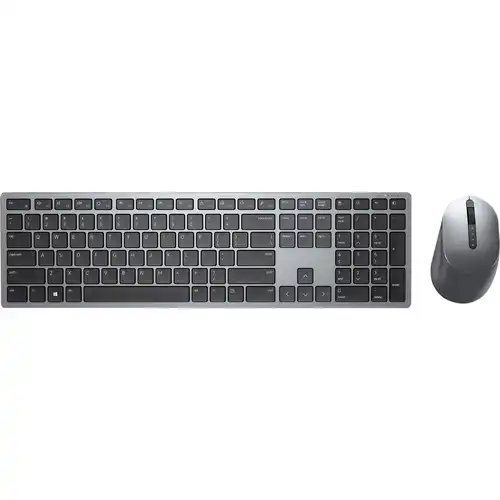
Dell Premier KM7321W Keyboard & Mouse - USB Wireless Bluetooth/RF - English (UK)
September 06,2021
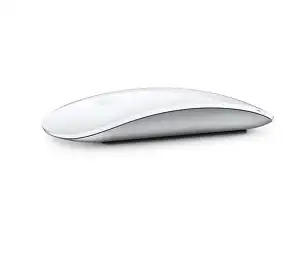
Apple Magic Mouse 2 Wireless Rechargeable MLA02Z/A (Silver) – Multi-Touch, Bluetooth, USB-C
September 02,2021
Contact Info
- Address: UKSoftwaretech ltd, 6 Roffey Close, Purley. Surrey, CR8 4BH
- Phone: 08712887049 (Calls cost 13ppm plus your network access charge)
- Email: [email protected]